Mastering Workflow Automation: Create Your First Zap
By Talent Navigator
Published Mar 14, 2025
4 min read
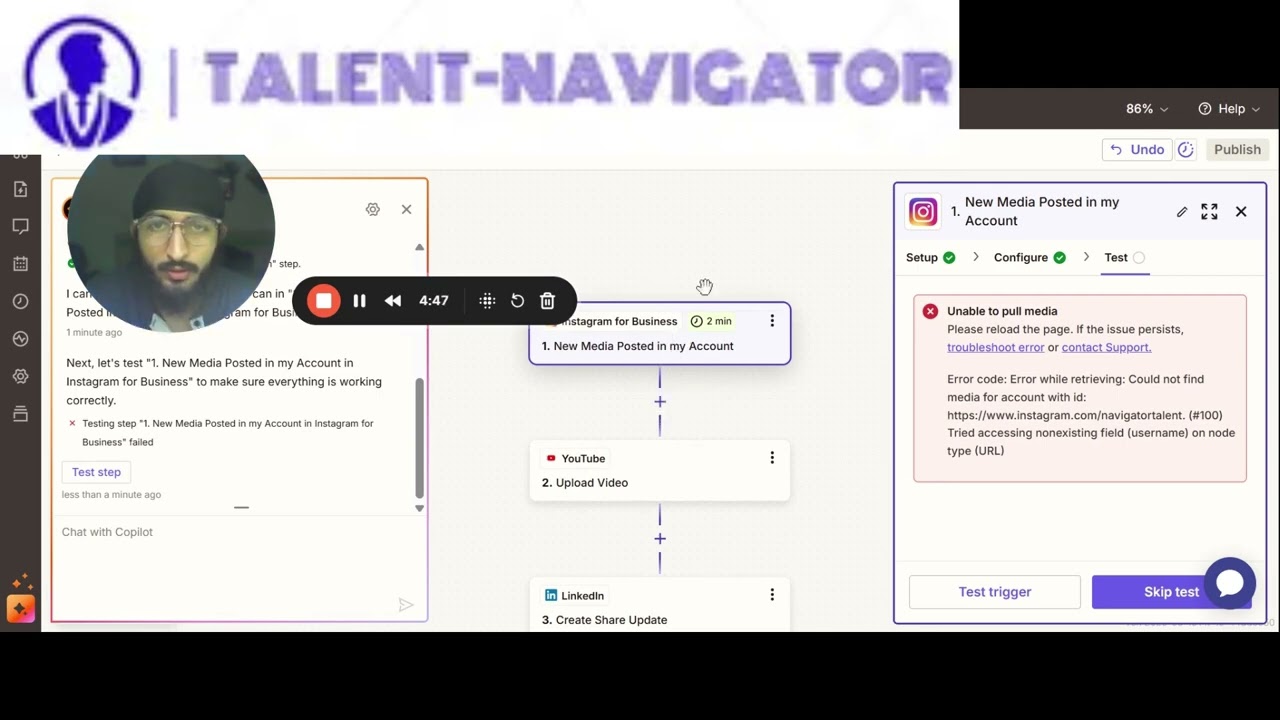
In today's fast-paced digital landscape, streamlining tasks through automation has become essential for maximizing productivity. Whether you're managing a business, a personal blog, or social media accounts, integrating various applications can drastically reduce manual work. One of the most effective tools for achieving this is Zapier, a platform that automates repetitive tasks by connecting different apps and services. In this guide, we will walk you through creating your first Zap, particularly on how to automate posting from Instagram to multiple platforms like YouTube and Facebook.
What is a Zap?
A "Zap" is an automated workflow that links two or more apps together. With Zapier, you create a chain of actions that trigger an outcome based on specific events in your connected apps. For instance, when you post on Instagram, you can set up a Zap to automatically post the same content on Facebook and YouTube. This not only saves time but ensures consistency across your social media platforms.
Key Steps to Create a Zap
https://www.youtube.com/watch?v=Rskx8AmLogc&ab_channel=TalentNavigator
Let’s break down the process into simple steps:
1. Access the Zap Creation Interface
To get started, log into your Zapier account and click on the "Create a Zap" button. This takes you to the Zap creation interface, where you can begin building your automated workflows.
2. Choose Your Trigger App
- Look for the option that allows you to select a trigger app. In our case, we will choose Instagram.
- You will see various options for triggers, select "New Media Posted", which activates the Zap when a new post is made on your Instagram account.
3. Set Up Your Actions
Once you've configured your trigger, it's time to define what actions should occur in response to that trigger. You can add multiple actions across different applications. For instance:
- Select YouTube as one of the action apps to post updates automatically.
- Choose the action event you want, for example, "Upload Video" or "Create a YouTube Post."
- If you need to include Facebook or LinkedIn, simply add those as subsequent action apps following the same steps.
4. Connect Your Accounts
- Depending on the action you choose, you will need to connect your accounts for Instagram, YouTube, and others. Click on “Connect Account,” and follow the prompts to grant Zapier access to your social media accounts.
5. Customize Your Action
This step allows you to define exactly how your posts should appear on different platforms. You can set it up as follows:
- Specify the content that gets shared (e.g., post text, links, tags).
- Set any necessary options, such as comments or video thumbnails when creating a YouTube post.
6. Test Your Zap
After creating your actions, it’s crucial to test the Zap:
- Zapier will run a test based on your setup to ensure everything works correctly. If you encounter errors like "unable to find media", it may be due to not having posted anything yet on Instagram.
7. Finalize Your Setup
If your test is successful, you’ll be prompted to name your Zap and turn it on. You can choose to search for your Instagram account again to ensure everything is structured correctly.
Important Considerations
- Some actions may have limitations based on what the application API supports. For example, YouTube does not allow creating posts directly from an Instagram URL if it’s an image. This means you might need to adjust your workflow to download content before uploading or creating posts.
- Keep experimenting with different apps and triggers to find the most effective automation for your specific needs.
Conclusion
Automating your workflows with Zapier is a fantastic way to save time and ensure you maintain a strong social media presence with minimal effort. By creating Zaps to connect apps, you can seamlessly share content across various platforms like Instagram, YouTube, and Facebook. As you become more familiar with the tools and options available, feel free to explore other integrations that can further enhance your productivity.
Don't wait any longer! Start creating your first Zap today and transform how you manage workflows.


Comments
Post a Comment